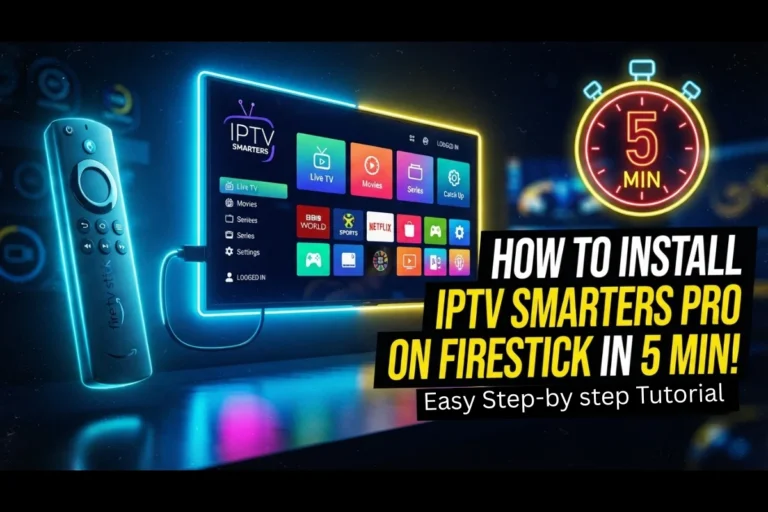
Setting Up IPTV Smarters Pro on Amazon Firestick in 5 Minutes
 Firestick IPTV · Smarters Pro · 2026
Setting Up IPTV Smarters Pro on Amazon Firestick in 5 Minutes
IPTV Smarters Pro is a popular way to organize an IPTV subscription on a Firestick without having to manage individual streams one by one. Once the app is installed, you can connect your provider using the login details or playlist format they supply.
To set up IPTV Smarters Pro on Firestick, install the compatible Smarters application, open it, choose the appropriate login method, and enter the IPTV credentials supplied by your provider. The player itself does not supply TV channels; your IPTV subscription provides the content connection.
If you’ve already used a Firestick for Netflix, YouTube, or other streaming apps, the basic idea is familiar. The difference is that IPTV Smarters Pro needs your IPTV service details before it can display live channels, movies, series, or other content.
This guide focuses specifically on IPTV Smarters Pro on Firestick: installation, first-time setup, login methods, playlist loading, useful settings, and the most common problems you may encounter.
What Is IPTV Smarters Pro?
IPTV Smarters Pro is an IPTV player rather than an IPTV subscription service. In simple terms, the application gives you the interface for accessing a compatible IPTV service, while your provider supplies the actual streaming data.
Depending on the version and platform, the application may be referred to by slightly different names, including Smarters Pro or Smarters Player. Always check that you’re installing the intended application from a source you trust.
What can you use it for?
Access live television streams supplied through your IPTV service.
Browse on-demand movie content when your subscription provides it.
Organize and access series libraries offered by your IPTV provider.
Use EPG information when your provider and player configuration support an electronic programme guide.
What You Need Before Installing IPTV Smarters Pro on Firestick
You can make the setup much quicker by having everything ready before you start.
- An Amazon Firestick or compatible Fire TV device
- A working internet connection
- A compatible Smarters application
- A valid IPTV subscription
- Your IPTV username, password, and server information if using an account-based login
- Your M3U playlist URL if your provider uses an M3U connection
How to Install IPTV Smarters Pro on Firestick
The exact Fire TV menus can vary depending on the Fire OS version and device generation. If an option has moved on your Firestick, look for the equivalent application installation or developer setting rather than relying on an older screenshot.
Open your Firestick settings
From the Fire TV home screen, open Settings.
Look for the section containing your Fire TV device information, applications, and available developer or installation settings.
Prepare Firestick for the app installation
If the Smarters application you’re using is available through Amazon’s official app distribution system, use the standard installation process.
If you are installing an application package from outside the official store, Fire TV may require the relevant permissions for installing applications from an external source.
Install the Smarters application
Install the compatible Smarters application on your Firestick. Once the installation finishes, open the app from your applications list.
If you have multiple applications installed, you can move the player closer to the front of your app list for easier access.
Choose your IPTV login method
On the first screen, the application will typically ask you to select a method for adding your IPTV service.
The exact choices depend on the application version, but common options include an Xtream Codes-style login or an M3U playlist.
Enter your IPTV subscription details
If your provider supplied an Xtream Codes-style login, enter the information exactly as provided.
If you were given an M3U playlist instead, select the relevant playlist option and paste the complete M3U URL.
Wait for the IPTV content to load
After submitting your details, give the application a moment to process the account or playlist.
Once the setup is complete, you may see sections such as Live TV, Movies, Series, and EPG, depending on what your provider supplies.
How to Add an IPTV Subscription to Smarters Pro
The fastest setup depends on the information supplied by your IPTV provider. Don’t guess the server address or modify the login details; use the information exactly as supplied.
Using Xtream Codes-style login
This method separates the account information into individual fields. You’ll normally need:
- Username
- Password
- Server URL
This can be convenient because you don’t have to paste one extremely long playlist URL into a single field.
Using an M3U playlist
If your IPTV provider gives you an M3U URL, select the playlist option in the application and paste the full address.
Which method should you choose?
| Login method | Information required | Useful when |
|---|---|---|
| Xtream Codes | Username, password and server URL | Your provider gives you separate account credentials |
| M3U | M3U playlist URL | Your provider supplies a playlist address |
What to Do After IPTV Smarters Pro Loads
Once your content appears, don’t immediately start changing every setting. First, test the basic functions.
Test a few live channels
Open several channels from different categories. This gives you a better idea of whether the connection is working normally rather than testing a single stream.
Check the EPG
If your IPTV provider supplies EPG data, check whether the programme guide has loaded correctly.
If channels work but the guide is empty, that doesn’t necessarily mean your IPTV login is broken. EPG data can be configured separately from the streams themselves.
Add useful favorites
If the service contains a large number of channels, use the favorites function to keep your frequently watched channels easier to find.
Recommended IPTV Smarters Pro Settings on Firestick
You don’t need to modify every available option. Start with a simple configuration and only change playback settings if you encounter a specific problem.
Keep the player updated
If an official update is available for the version you’re using, keeping the application current can help with compatibility and bug fixes.
Use the correct stream quality
If your internet connection or Firestick struggles with a high-bitrate stream, testing a lower-quality version can help determine whether bandwidth or device performance is involved.
Don’t change playback settings without a reason
Advanced buffer, decoder, or player settings can affect playback. If everything is working properly, there is usually no reason to change them simply because an online tutorial recommends a different configuration.
IPTV Smarters Pro Not Working on Firestick?
Most setup problems fall into one of four areas: the application, your IPTV credentials, the network, or the stream itself.
Smarters Pro won’t install
If installation fails, check:
- Available Firestick storage
- Your internet connection
- Application compatibility with your Fire TV software
- Whether the installation source is working
- Whether the application package is legitimate and complete
Login details are rejected
Recheck every field carefully.
- Username
- Password
- Server URL
- M3U URL, if applicable
Pay particular attention to uppercase and lowercase characters, spaces, punctuation, and the beginning or end of a URL.
Playlist loads but channels don’t play
If your categories appear correctly but streams fail to play, the problem may not be the login itself.
Test several different channels. If only one or two fail, the individual streams may be unavailable. If everything fails, investigate the network, application, or IPTV service.
IPTV Smarters Pro keeps buffering
Start with the simplest checks:
- Test another channel.
- Check the Firestick’s internet connection.
- Restart the Firestick.
- Close other applications running in the background.
- Test a lower-quality stream if available.
- Try the same subscription on another compatible device.
Testing another channel is particularly useful. If one stream buffers while others play normally, repeatedly changing Firestick settings may not solve the actual problem.
EPG is missing or incomplete
An empty or incomplete programme guide doesn’t necessarily mean that your entire IPTV setup has failed.
EPG information is dependent on the data supplied by your IPTV service and how it is configured in the player. If live channels work normally, check the EPG configuration separately.
How to Improve IPTV Smarters Pro Performance on Firestick
Keep your Firestick storage under control
Remove applications you no longer use and avoid filling the device with unnecessary downloads.
Restart after major changes
If you’ve installed several applications, changed network settings, or experienced unusual playback behavior, a simple restart can clear temporary problems.
Improve your Wi-Fi connection
Place your router and Firestick in positions that provide a stronger and more consistent wireless connection when possible.
If your network is heavily used by other devices while you’re streaming, congestion can also affect playback.
Test before assuming the player is the problem
If another streaming application works perfectly on the same Firestick, test several IPTV streams before reinstalling Smarters.
This simple comparison can help separate an application problem from an issue with the network or individual IPTV streams.
Does IPTV Smarters Pro Work on Every Firestick?
Compatibility depends on the application version, the Fire TV software running on your device, and how the application is distributed.
If you have an older Fire TV Stick, check application compatibility before assuming that every current version will behave identically across generations.
Using IPTV Smarters Pro With Lexonstream IPTV
If you’re using Lexonstream IPTV, the important part is having the subscription information supplied with your account before you begin.
Once Smarters is installed, use the login method supported by your subscription and enter the information exactly as provided.
After the playlist loads, test several channels before making additional changes to the Firestick or the application.
Is IPTV Smarters Pro Legal to Use on Firestick?
IPTV Smarters Pro is a player application. The application itself does not determine whether the content accessed through it is authorized.
The important consideration is the IPTV service and the rights it has to distribute the content you access. Use IPTV services and streams that you are authorized to access in your jurisdiction.
Frequently Asked Questions
How do I install IPTV Smarters Pro on Firestick?
Install a compatible Smarters application on your Firestick, open it, select the supported IPTV login method, and enter the credentials or playlist supplied by your IPTV provider. The exact installation route can vary according to your Fire TV software and the application’s distribution method.
Does IPTV Smarters Pro provide free TV channels?
No. Smarters is an IPTV player. You need an IPTV service or playlist that you are authorized to use in order to load channels and other content.
Can I use Xtream Codes with Smarters Pro on Firestick?
If the version of the Smarters application you’re using supports that login method, you can enter the username, password, and server information supplied by your IPTV provider.
Can I use an M3U playlist with Smarters on Firestick?
Yes, where the application version supports M3U playlists. You normally paste the playlist URL supplied by your IPTV provider into the relevant playlist field.
Why is IPTV Smarters buffering on my Firestick?
Buffering can result from unstable Wi-Fi, network congestion, a problematic stream, application issues, or insufficient device performance. Test another channel first, then check your connection and restart the Firestick.
Why does my IPTV playlist load but show no channels?
Check that the login information or playlist URL was entered correctly. If the credentials are accepted but categories remain empty, the issue may be related to the playlist or IPTV service configuration rather than the Firestick itself.
Do I need a VPN to use IPTV Smarters Pro on Firestick?
A VPN is not inherently required to install or use an IPTV player. Whether you choose to use one depends on your privacy preferences, network setup, and applicable local laws.
Final Thoughts
Setting up IPTV Smarters Pro on Firestick doesn’t need to be complicated. The main steps are installing a compatible player, choosing the correct connection method, and entering your IPTV subscription information accurately.
Once your channels load, spend a few minutes testing different streams, checking the EPG if your service provides one, and organizing your favorites. If something goes wrong later, test the network, credentials, application, and individual streams separately rather than changing everything at once.
Ready to Set Up Your IPTV on Firestick?
Have your IPTV subscription details ready and follow the steps above to connect your Firestick. If you’re using Lexonstream IPTV, you can use your supplied account information to complete the setup.
Visit Lexonstream IPTVNote: IPTV Smarters Pro is a player application and does not itself provide television channels or subscriptions. Always use IPTV services and content that you are authorized to access.