 Firestick IPTV Troubleshooting
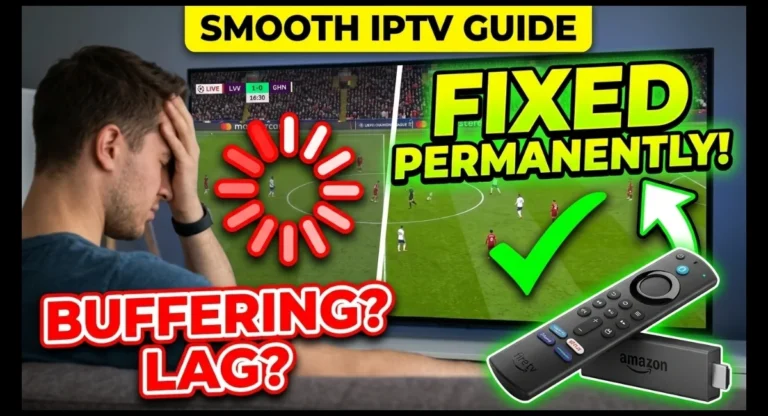
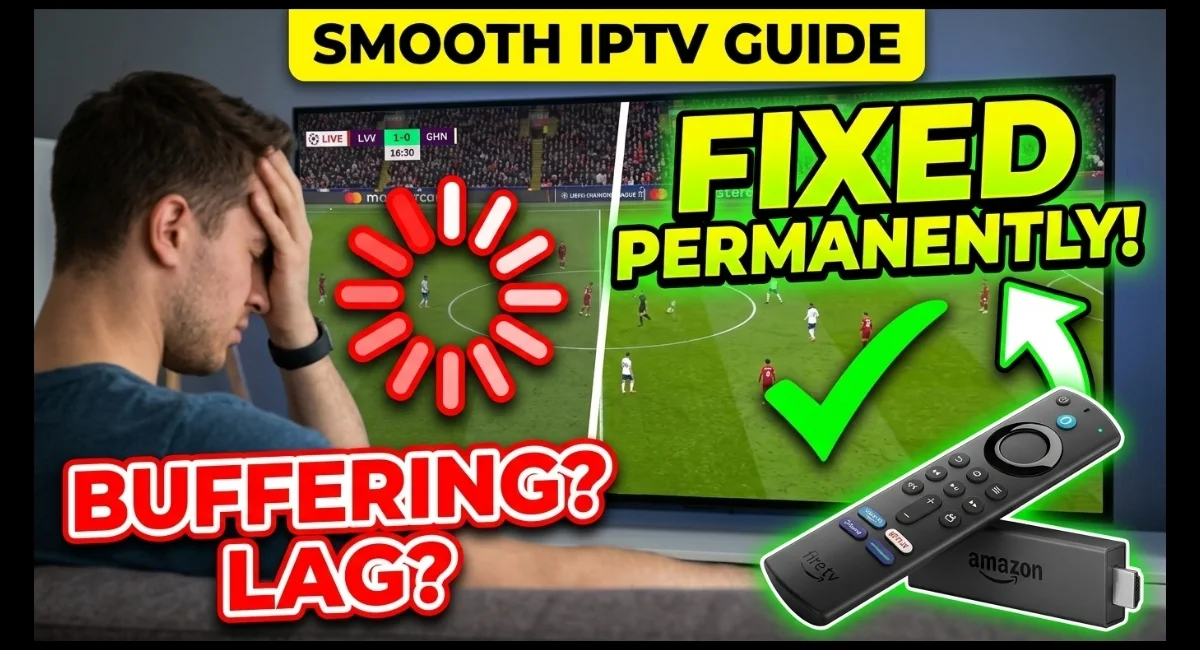
How to Fix IPTV Buffering and Lagging on Firestick Permanently
IPTV buffering on Firestick can be caused by several completely different things. A weak Wi-Fi connection, an overloaded network, low device storage, a problematic stream, or the IPTV service itself can all produce similar symptoms. The trick is to identify which one you’re dealing with instead of randomly changing every setting in your Firestick.
There isn’t one Firestick setting that can permanently eliminate buffering. A lasting fix comes from finding the actual bottleneck. If every channel buffers, investigate the network and device. If only one channel buffers, investigate that stream. If the same account fails on multiple devices, investigate the IPTV service.
That distinction saves a lot of unnecessary troubleshooting. Reinstalling an IPTV player won’t repair weak Wi-Fi, and changing your Firestick’s video settings won’t fix an IPTV server that is struggling to deliver a particular stream.
First: Identify Where the Buffering Comes From
Before changing anything, look at how the problem behaves. The pattern is often more useful than the buffering itself.
Every channel buffers
Start with your internet connection, Firestick performance, and the overall network environment.
Only certain channels buffer
Test other channels first. The issue may be specific to a stream, category, or source.
Buffering happens at busy hours
A time-dependent problem can point toward network congestion or service-side capacity rather than the Firestick itself.
Other apps buffer too
If YouTube or another streaming application also struggles, investigate the network or device before the IPTV player.
The 3-Minute Buffering Test
You don’t need a complicated diagnostic tool to narrow this down. Run these tests in order and note what changes.
Fix the Firestick’s Network Connection
Network quality is one of the first things to investigate because IPTV playback is continuous. A connection that seems fine for browsing can still have trouble maintaining a stable video stream.
Restart the router and Firestick
Start with the simplest intervention. Restart your router, allow it to reconnect fully, then restart the Firestick and test playback again. This clears temporary connection problems without changing your configuration.
Improve the Firestick’s Wi-Fi position
The Firestick sits directly behind or beside the television, which can sometimes make its wireless environment less than ideal. Walls, furniture, other electronics, and distance from the router can all affect signal quality.
If possible, reduce the distance between the Firestick and router or remove obvious physical obstacles.
Check whether other devices are consuming bandwidth
A Firestick can share your connection with phones, computers, game consoles, cloud backups, downloads, and other televisions. If several devices are actively using the network, available bandwidth can fall during playback.
Stop large downloads and temporarily reduce heavy network activity. If IPTV suddenly becomes stable, congestion is worth investigating.
Try the other Wi-Fi band if your router provides one
Many modern routers offer both 2.4 GHz and 5 GHz networks. Their characteristics are different: 5 GHz can provide strong performance at shorter distances, while 2.4 GHz generally travels farther and can behave differently through walls.
If one band gives inconsistent results, test the other one and compare actual playback rather than assuming one is always better.
Don’t Judge the Connection by Download Speed Alone
A speed-test number can be useful, but it doesn’t tell the entire story. IPTV playback is affected by latency, packet loss, wireless interference, congestion, and the stability of the connection to the streaming source.
| What you observe | What it can indicate |
|---|---|
| All streaming apps struggle | Local network, ISP, or device problem |
| IPTV only struggles | Player, IPTV service, or specific stream |
| Only HD/4K streams struggle | Higher bandwidth demand or stream-specific issue |
| Buffering comes and goes | Network instability, congestion, or inconsistent source delivery |
| One channel always struggles | Potentially a problem with that individual stream |
Check the Firestick’s Performance
A Firestick that is overloaded or running low on storage can become less responsive. That doesn’t automatically mean it is the cause of IPTV buffering, but it’s easy enough to rule out.
Free up unnecessary storage
Remove apps you no longer use and clear unnecessary clutter where appropriate. Keeping the device organized can make the interface more responsive.
Restart instead of repeatedly force-closing apps
If the Firestick has been running continuously for a long period, restarting it is often a cleaner troubleshooting step than repeatedly closing and reopening applications.
Don’t overload the device with unnecessary apps
IPTV doesn’t require you to install a large collection of helper applications. If an app isn’t useful to you, removing it reduces clutter and simplifies future troubleshooting.
Check Your IPTV Player Before Changing Advanced Settings
If your internet connection is stable and other apps work normally, the IPTV player becomes the next logical place to investigate.
Update the player when an update is available
An outdated application can contain bugs that have already been fixed in a newer release. If the player provides a legitimate update path, use it before experimenting with more complicated settings.
Check whether the problem affects all playlists
If you use more than one legitimate IPTV service or playlist, compare them carefully. If one playlist buffers while another plays normally, the issue is less likely to be the Firestick’s general playback ability.
Test the default playback configuration first
Don’t immediately change hardware decoding, software decoding, buffering size, frame rate, or other advanced options just because somebody online recommended a particular configuration.
Record the original setting, make one change, and test again. That gives you an actual comparison instead of turning troubleshooting into guesswork.
When Only Certain Channels Buffer
This is one of the most useful clues in the entire troubleshooting process.
Suppose ten channels play normally but one channel constantly stops to buffer. Your Firestick is already demonstrating that it can receive and decode IPTV streams. That makes a device-wide problem less likely.
Try several channels from the same category
If one channel fails while the others work, test two or three nearby channels. If the entire category has problems, the issue may affect that group or its source rather than your Firestick.
Compare different stream qualities
Higher-resolution streams generally require more data than lower resolution versions. If a lower-quality version plays consistently while a high-bitrate stream doesn’t, bandwidth or stream delivery becomes more relevant.
Don’t reinstall the player unnecessarily
Reinstalling an application won’t repair a stream that is failing upstream. Diagnose the scope of the problem first.
When the IPTV Service Is the Problem
IPTV playback isn’t controlled entirely by your Firestick. The stream has to travel from the service’s infrastructure to your device, so problems on the provider side can look exactly like a local buffering problem.
A strong sign is when the same subscription behaves poorly on multiple compatible devices while your general internet connection continues to work normally.
Contact the provider when the problem follows the account
If you’ve already ruled out the network and device, ask your IPTV provider whether there is a known outage, server issue, playlist problem, or account-related restriction.
Advanced Fixes Worth Trying
Only move to these steps after the basic diagnosis. Advanced changes can help in particular situations, but they aren’t universal cures.
1. Test a different DNS configuration
DNS affects how domain names are resolved. Changing DNS can sometimes help with connection or resolution problems, but it won’t increase the capacity of an overloaded IPTV server.
2. Test the Firestick closer to the router
This is a simple physical test with useful diagnostic value. If playback improves significantly when the device is closer to the router, your wireless environment deserves attention.
3. Test another network temporarily
If practical, compare the Firestick on a different reliable connection. If IPTV works normally there, your home network or ISP connection becomes a much stronger suspect.
4. Compare the same stream on another device
This is one of the best isolation tests. Use the same IPTV account and, where possible, the same channel. If the stream behaves differently on another device, you’ve narrowed the problem down considerably.
What Not to Do When IPTV Keeps Buffering
Some troubleshooting habits create more variables without actually solving the underlying issue.
- Don’t change five playback settings at the same time.
- Don’t assume a speed-test result proves the connection is perfect.
- Don’t reinstall the IPTV player after every buffering incident.
- Don’t assume every buffering problem is caused by the Firestick.
- Don’t use random playlist URLs or credentials from online sources.
- Don’t pay for a “buffering fix” that simply changes unrelated device settings without diagnosing the cause.
What If You’re Using Lexonstream IPTV?
If you’re experiencing IPTV buffering on Firestick while using Lexonstream IPTV, use the same isolation process rather than immediately changing your Firestick configuration.
Start by testing several channels. Then check another streaming app to determine whether your internet connection is stable. If possible, compare the same IPTV account on another compatible device.
This gives you useful information before contacting the provider. For example, if only one stream buffers while everything else plays normally, that’s very different from an entire account failing across multiple devices.
How to Prevent Buffering From Returning
Once you’ve identified the actual cause, the best long-term solution is usually straightforward.
Keep the network stable
Give the Firestick a reliable wireless connection and avoid unnecessary network congestion during streaming.
Keep the device maintained
Remove unused apps, keep reasonable free storage, and restart the device when performance starts degrading.
Keep the player current
Updates can resolve application bugs and compatibility issues. Use the appropriate update mechanism for your player.
Know your problem pattern
If you know whether an issue affects every channel or only certain streams, you’ll troubleshoot much faster next time.
Still Buffering? Use This Decision Tree
Final Takeaway
The most reliable way to stop IPTV buffering on Firestick is not to search for one “magic” buffer setting. Start with the symptom, isolate the problem, and change only the part of the setup that is actually responsible.
If every streaming app struggles, start with the network. If the Firestick itself feels slow, look at device performance. If only one IPTV stream buffers, investigate that stream. And if the same IPTV account has problems on multiple devices, the provider or service connection deserves attention.
Looking for IPTV to Use on Firestick?
If you’ve already optimized your Firestick and are looking for an IPTV service to use with a compatible player, you can learn more about Lexonstream IPTV and the available subscription options.
Explore Lexonstream IPTV