How to Set Up IPTV Smarters on Android TV
Setting up IPTV Smarters on Android TV is usually straightforward, but the menus can look different depending on the television. Sony, TCL, and Philips models may use different versions of Android TV or Google TV, while the core installation and playlist setup remain largely the same.
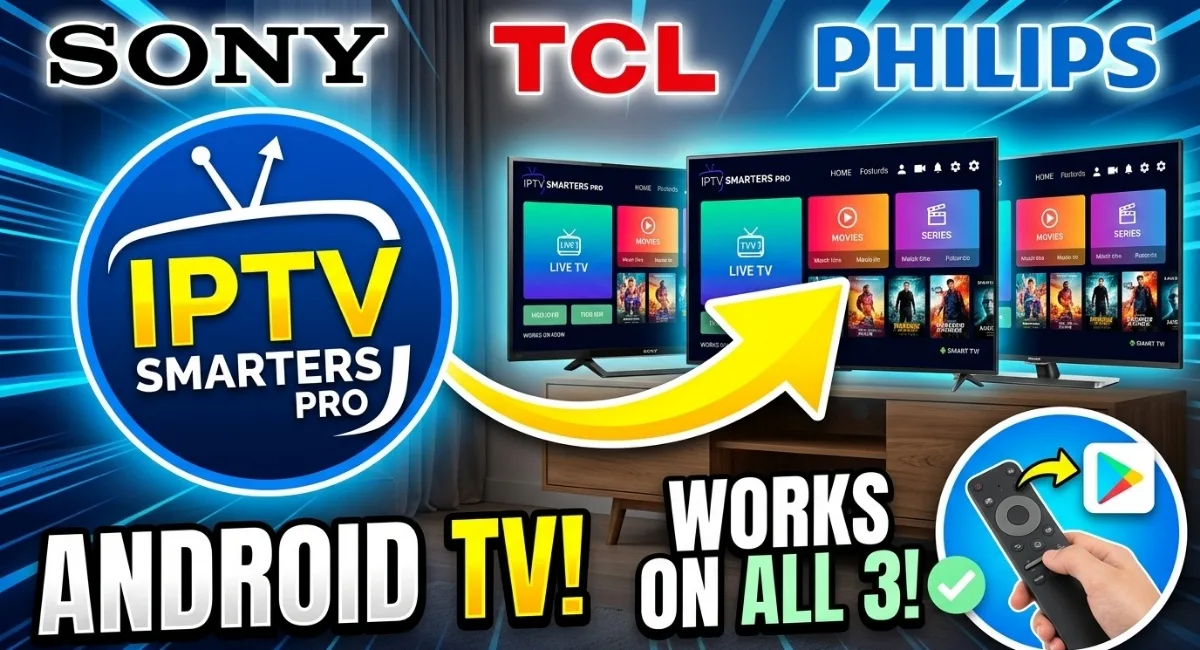
To set up IPTV Smarters on Android TV, open Google Play Store on your television, search for the compatible IPTV Smarters application, install it, and then add the IPTV account or playlist information supplied by your provider. The application is only the player; your IPTV subscription or playlist supplies the actual content.
Before You Install Anything
The setup is easier when you have your IPTV information ready. Depending on the service you use, you may receive Xtream Codes credentials, an M3U playlist URL, or another supported connection method.
- A compatible Android TV or Google TV television
- A stable internet connection
- Access to Google Play Store
- The IPTV Smarters application supported by your television
- Your IPTV username, password, server address, or M3U playlist
Installing IPTV Smarters on Android TV
If your television supports the application through Google Play, using the official app store is the simplest route. It also avoids downloading APK files from unknown websites.
Open the Apps section
From the Android TV or Google TV home screen, open the apps area. Depending on the television, this may be labelled Apps, Your apps, or appear as part of the main navigation.
Launch Google Play Store
Find Google Play Store and open it. If it is not immediately visible, check the complete application list.
Search for IPTV Smarters
Use the Play Store search function and look for the IPTV Smarters application available for your television. App names and availability can change, so check the application listing before installing it.
Install the application
Select the compatible application and choose Install. Wait for the download and installation process to finish.
Open the player
Once installed, select Open. The application should display its available login or playlist options.
Choose the Right Login Method
The next screen depends on the version of the player you installed. The most common options involve either Xtream Codes credentials or an M3U playlist.
Xtream Codes Login
If your IPTV provider supplied a username, password, and server URL, use the Xtream Codes option when available.
Server URL
Username
Password
Enter the information exactly as provided. Be particularly careful with punctuation, capital letters, and the beginning or end of the server address.
M3U Playlist
If you received an M3U URL instead, select the playlist or M3U option and paste or enter the complete address.
Getting Your Playlist Ready
After successful authentication, the application may need a moment to retrieve your playlist. Large services can contain thousands of entries, so the first load may take longer than subsequent launches.
Once the content is available, check whether categories, live channels, movies, series, and guide information appear as expected.
Test More Than One Channel
Do not judge the entire setup from a single stream. Open several channels from different categories. This helps distinguish a player or network issue from a problem affecting one particular stream.
Set Up Favorites
A large playlist can make navigation unnecessarily slow. Add the channels you actually watch to your favorites so you do not have to browse the complete list each time.
How the Setup Differs Between TV Brands
Android TV & Google TV
Sony televisions can use different home-screen designs depending on their generation. Look for the Apps area or Google Play Store.
Android TV & Google TV
TCL has models running both platforms, so the exact location of the Play Store and application menus can vary.
Android TV Models
Compatible Philips Android TVs provide access to Android applications through Google Play, with menu layouts varying by software version.
These differences are mostly interface-related. Once you reach Google Play Store and install the compatible player, the IPTV account configuration follows the same general process.
What If IPTV Smarters Does Not Appear?
If you cannot find the application in Google Play, do not immediately assume that the television is incompatible. Application availability can depend on the model, Android version, region, and the current distribution of the app.
Start by checking for available TV software updates. Also make sure the television has enough free storage and that Google Play Store is functioning normally.
About APK Installation
Sideloading an APK can sometimes be used when an application is unavailable through the Play Store, but it introduces another compatibility and security variable. Avoid downloading APK files from unknown websites.
If an APK is genuinely required, verify that it comes from a trustworthy source and is compatible with the Android version and hardware of your television.
Common Problems After Installation
| What you see | Possible cause | What to check first |
|---|---|---|
| The application will not install | Compatibility or storage | Check software version, storage space, and Play Store availability. |
| Login is rejected | Incorrect account information | Re-enter the username, password, and server URL carefully. |
| No playlist appears | Connection or playlist information | Verify the M3U URL or account details supplied by your provider. |
| One channel does not play | Individual stream issue | Test several other channels before changing your TV configuration. |
| All channels buffer | Network or service issue | Test the television’s internet connection and another streaming service. |
| EPG is empty | Guide data configuration | Check whether your IPTV service provides EPG information and whether it has loaded correctly. |
Diagnosing Playback Problems
When something goes wrong, changing several settings at once makes the cause harder to identify. Instead, isolate each part of the setup.
If Only One Stream Fails
Try multiple other channels. If the rest work normally, the problem may be limited to that particular stream rather than the television or player.
If Everything Buffers
Check another streaming application on the same TV. If other services also have problems, investigate the internet connection before changing IPTV player settings.
If the Player Opens but the Account Does Not
Recheck the login information. A single incorrect character in a username, password, or server URL can prevent authentication.
Improve the Android TV Setup
- Keep the television software updated.
- Use a stable Wi-Fi connection or Ethernet when available.
- Keep sufficient storage space free.
- Remove applications that you no longer use on storage-limited TVs.
- Organize frequently watched channels into Favorites.
- Avoid changing advanced playback options unless you are troubleshooting a specific problem.
Is Android TV Good for IPTV?
Android TV can be a convenient platform for IPTV because it supports a broad range of media applications and provides access to Google Play on compatible devices.
However, playback quality is not determined by the operating system alone. Your television’s hardware, network connection, application compatibility, and the quality of the individual stream all affect the experience.
Frequently Asked Questions
Can IPTV Smarters run on Android TV?
Compatible Android TV and Google TV devices can run supported IPTV Smarters applications. Availability depends on the television model, software version, region, and current application distribution.
Can I use IPTV Smarters on a Sony TV?
Supported Sony Android TV and Google TV models can run compatible IPTV player applications. The exact menus depend on the television’s software version.
Does IPTV Smarters work on TCL televisions?
Compatible TCL Android TV and Google TV models can use supported IPTV player applications. The installation path may differ between models.
Can Philips Android TV use IPTV Smarters?
Compatible Philips Android TV models can install supported applications through Google Play Store. Availability should be checked on the specific television.
Does IPTV Smarters provide IPTV channels?
No. IPTV Smarters is a player/interface. You need a separate IPTV service and valid credentials or playlist information.
Why is IPTV Smarters not showing in Google Play?
The application may not be available for a particular TV model, Android version, or region. Check system updates, Play Store functionality, and device compatibility before considering alternative installation methods.
Ready to Use Your IPTV Player?
Once IPTV Smarters on Android TV is installed and your playlist or account has been added, you can organize your channels and start using the player. If you still need an IPTV service for your setup, you can check the options available from Lexonstream IPTV.
Visit Lexonstream IPTV