Ultimate Guide: How to Install IPTV on Android TV & Google TV
Getting IPTV on Android TV or Google TV is usually straightforward, but the exact process depends on the app you choose and how your IPTV provider delivers its service. This guide covers the setup from the TV itself to playlist credentials, playback, and the settings that can make everyday use easier.
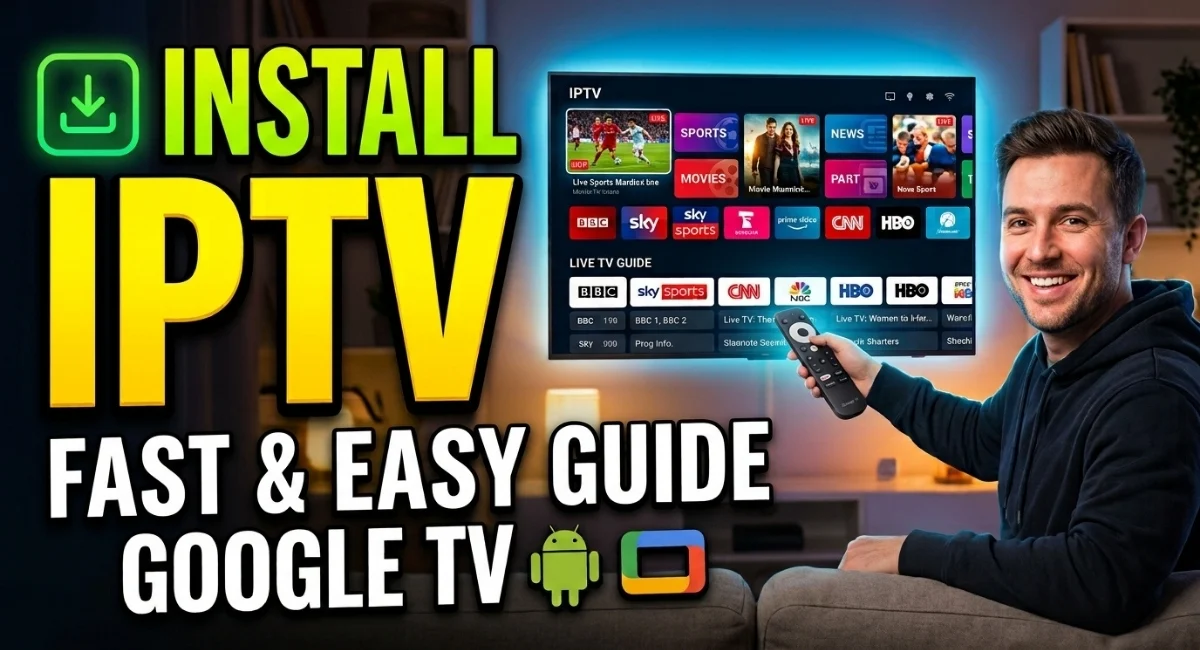
To use IPTV on Android TV, install a compatible IPTV player from the Google Play Store, open it, and add the playlist or login details supplied by your IPTV provider. Google TV follows essentially the same process because it is built on Android TV OS. The player is simply the interface used to load and play your subscription; it does not provide television channels by itself.
What You Need Before Installing IPTV
Before opening the app store, have the information from your IPTV provider ready. Most services use one of two common login methods: an M3U playlist URL or Xtream Codes credentials.
- An Android TV or Google TV device connected to the internet
- Access to the Google Play Store
- An IPTV subscription or legitimate IPTV service account
- Your M3U URL or Xtream Codes login details, depending on the service
- A compatible IPTV player
Android TV vs. Google TV: Does the Setup Change?
Not much. Google TV is Google’s newer interface layered on top of Android TV OS, so compatible applications are generally installed through the same Google Play Store ecosystem.
| Device/interface | Typical installation method | What to expect |
|---|---|---|
| Android TV | Google Play Store | Search for a compatible IPTV player and install it. |
| Google TV | Apps section / Google Play ecosystem | The interface differs, but the underlying Android TV app environment is similar. |
| Android TV Box | Play Store or sideloading | Exact menus vary according to the box manufacturer and Android version. |
How to Install IPTV on Android TV
The cleanest approach is to start with an IPTV player that is available directly through the TV’s app ecosystem. That avoids unnecessary sideloading and makes future app updates easier.
Open the Google Play Store
From the Android TV home screen, open the Google Play Store. On some televisions, you may find it under Apps rather than directly on the home screen.
Search for an IPTV player
Search for a compatible IPTV player by name. Availability can differ between devices, countries, and Android TV versions, so do not assume that every IPTV application will appear on every television.
Install the application
Select the app from the search results and choose Install. Wait for the installation to finish before opening it.
Launch the IPTV player
Open the application. The first screen may ask you to add a playlist, enter account details, or choose a connection method.
Choose the login method provided by your service
If your provider supplied an M3U URL, select the playlist/M3U option. If you received a server URL, username, and password, use the Xtream Codes option when supported by the player.
Save the playlist and wait for the content to load
Enter the information carefully. A single missing character in a URL, username, or password can prevent the playlist from loading.
Adding Your IPTV Playlist Correctly
This is where many failed setups happen. The application itself may be installed correctly, but the playlist information has been entered incorrectly or the provider’s server may be unavailable.
If You Were Given an M3U URL
Choose the player’s option for an M3U playlist or URL. Paste the complete address supplied by your provider, then give the playlist a recognizable name if the application asks for one.
If You Were Given Xtream Codes Details
Select the Xtream Codes or similar login option and enter the server address, username, and password exactly as supplied. Be careful with spaces, punctuation, uppercase characters, and the server URL.
Choosing the Right IPTV Player for Android TV
There is not one universal IPTV player that is ideal for every setup. The better choice depends on how you use your service and which features matter to you.
Simple setup
If you only need live TV and a basic channel list, choose a player with a straightforward interface and easy playlist management.
Large channel libraries
If your playlist contains a large number of channels, an application with strong search, categories, favorites, and electronic program guide support can save considerable time.
Multiple playlists
Users with more than one IPTV service should look for reliable playlist switching and profile management rather than focusing only on appearance.
Playback control
If you frequently experience different stream formats, useful playback controls and compatibility options can matter more than the app’s visual design.
How to Set Up IPTV on Google TV
Google TV devices follow almost the same installation route. The main difference is the user interface, which emphasizes recommendations and installed apps rather than the traditional Android TV home screen.
- Open the Apps section on your Google TV.
- Use the search function to find a compatible IPTV player.
- Select the application and install it.
- Open the player after installation.
- Select the appropriate playlist or login method.
- Enter the credentials supplied by your IPTV provider.
- Allow the playlist to load, then test a few channels.
If an application does not appear in the Google TV search results, do not immediately assume that the television is incompatible. App availability can depend on the developer, device certification, Android version, and regional Play Store availability.
What to Check After the Playlist Loads
Do not stop at the first channel that plays. A quick test can tell you whether the setup is genuinely working.
- Open several channels from different categories.
- Check whether the electronic program guide populates if your service provides one.
- Test both standard-definition and HD streams where available.
- Add a few frequently watched channels to Favorites.
- Close and reopen the player to make sure the playlist remains saved.
Common Android TV IPTV Problems and What They Usually Mean
When something does not work, the symptom usually gives you a useful clue. Avoid changing five settings at once; isolate the problem first.
| Problem | Likely area to check | First thing to try |
|---|---|---|
| Playlist will not load | Credentials or provider server | Recheck the URL, username, and password. |
| App cannot be installed | Device/app compatibility | Check Android version and Play Store availability. |
| Channels load but keep freezing | Network, stream, or provider | Test another channel and check your connection. |
| EPG is empty | EPG configuration or provider data | Check whether the service actually supplies EPG information. |
| Video plays without sound | Audio codec or player compatibility | Test another stream and review the player’s audio options. |
Improve Playback Before Changing Your IPTV Service
If channels play but occasionally stutter, start with the basics. A new IPTV application is not automatically going to solve a weak Wi-Fi connection or an overloaded network.
Use Ethernet When Available
A wired connection is often preferable for a television or TV box that stays in one place. It removes many of the variables associated with wireless interference and signal strength.
Test the Connection Near the TV
Your internet plan may be fast while the actual Wi-Fi connection reaching the television is poor. Distance from the router, walls, congestion, and interference can all affect performance.
Restart the TV and Router
A complete restart can clear temporary network and application issues. If the problem returns immediately, however, treat that as a clue rather than a permanent solution.
Compare Different Streams
If one channel freezes while several others play normally, the problem may not be your Android TV at all. Testing multiple channels helps separate a local playback issue from a stream-specific or provider-side issue.
Should You Sideload an IPTV App?
Sideloading means installing an application from outside the normal Play Store distribution process. It can be useful when a legitimate application is unavailable for your particular device, but it adds another variable to the setup.
For a first-time installation, the Play Store is generally the simpler route. If you do sideload an application, use a legitimate source from the application’s developer and verify that the app is compatible with your device before installing it.
Android TV IPTV Setup Checklist
Before considering the installation finished, run through this short checklist:
- The IPTV player installs and opens normally.
- Your provider’s credentials are entered without extra spaces or missing characters.
- The playlist loads successfully.
- Several channels play rather than only one.
- Your EPG works if it is included with the service.
- Your TV has a stable internet connection.
- The application and Android TV software are reasonably up to date.
Frequently Asked Questions
Can I install IPTV directly on Android TV?
Yes. Compatible IPTV players can generally be installed through the Google Play Store on supported Android TV devices. You then add the playlist or account details supplied by your IPTV provider.
Does IPTV work on Google TV?
Yes. Google TV is based on Android TV OS, so many Android TV applications can also be used on Google TV devices. Exact app availability can vary by device and region.
Do I need an IPTV app to watch IPTV on Android TV?
You normally need a compatible player or application to load and play an IPTV playlist. The player itself is not the IPTV service; it provides the interface for accessing content supplied by your provider.
Why is my IPTV playlist not loading on Android TV?
Check the playlist URL or login credentials first. If those are correct, test the internet connection and determine whether the provider’s server or service is currently available.
Can I use the same IPTV account on Android TV and Google TV?
That depends on the terms and device limits of your IPTV provider. Some services allow multiple devices while others restrict simultaneous connections or total activations.
Final Thoughts
Setting up IPTV on Android TV does not have to be complicated. The basic process is to install a suitable player, enter the playlist or account information supplied by your provider, and then verify that the streams and guide data work correctly.
If something goes wrong, work from the simplest variables first: credentials, internet connection, application compatibility, and individual stream behavior. That approach is much faster than repeatedly reinstalling apps without identifying the actual source of the problem.
Ready to Set Up Your IPTV Service?
Once your Android TV or Google TV player is installed, you need a compatible IPTV service and valid login details to load your channels. If you’re looking for a service to use with your setup, you can learn more about Lexonstream IPTV below.
Visit Lexonstream IPTV