Running TiviMate on Android TV: Installation & Playlist Setup
TiviMate is designed around the way people actually watch live TV: channels, categories, an electronic program guide, favorites, and playlists are kept in one interface. If you already have an IPTV service and want a cleaner way to organize it on an Android TV device, TiviMate is one of the players worth considering.
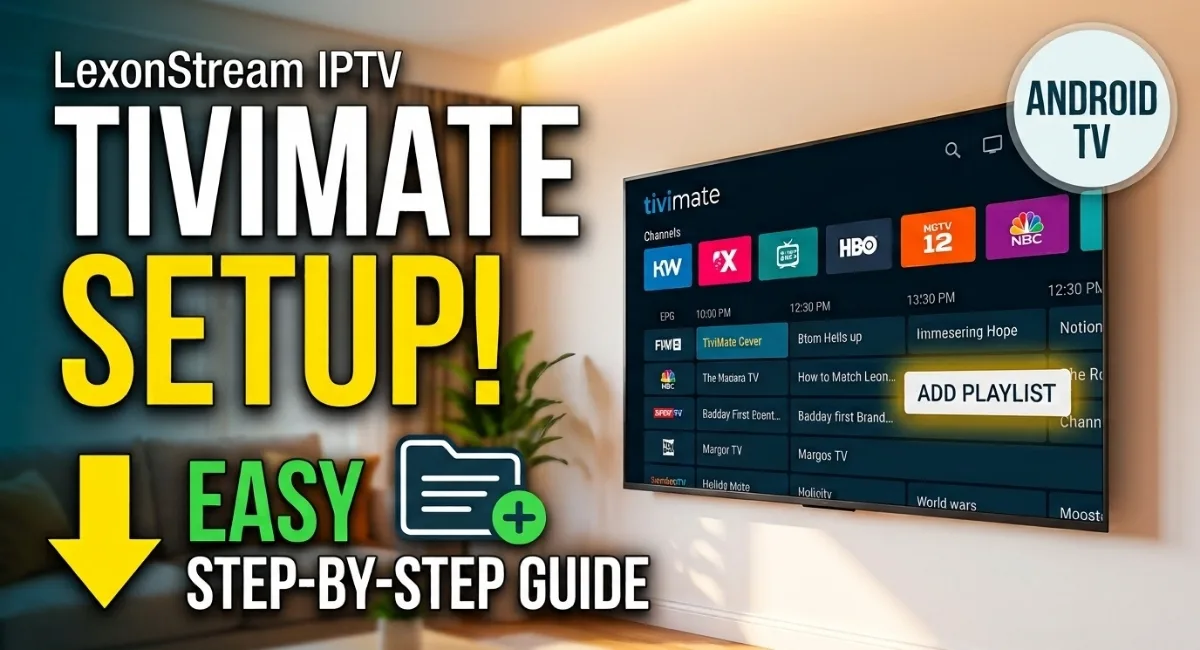
What you need before opening TiviMate
The app itself does not provide live channels. You need an IPTV subscription or playlist from a provider that gives you compatible connection details.
Your Android TV device
The television or streaming device should have access to the Google Play Store and enough available storage to install the application.
Your IPTV login details
Depending on the service, you may receive an M3U playlist URL, Xtream Codes details, or another supported connection method.
A stable internet connection
A reliable Wi-Fi or Ethernet connection is more useful than simply having a high advertised internet speed.
A few minutes for setup
The basic installation is quick. Most of the time is spent entering the correct playlist information and letting the guide data load.
Installing TiviMate on Android TV
The simplest installation method is through the television’s built-in Google Play Store. There is normally no reason to sideload the application when the official store is available on your device.
- Open Google Play Store From the Android TV home screen, open the Play Store and use the search function.
- Search for TiviMate Enter TiviMate and select the appropriate application from the results.
- Install the application Choose Install and wait for Android TV to finish downloading the app.
- Launch TiviMate Open the application once installation has completed. You should arrive at the initial playlist setup screen.
Adding your IPTV playlist
This is the part that determines whether your channels and guide data appear correctly. TiviMate needs the connection information supplied by your IPTV service.
Option 1: Xtream Codes
If your provider gives you an Xtream Codes username, password, and server address, this is usually the easiest option to enter on a TV remote.
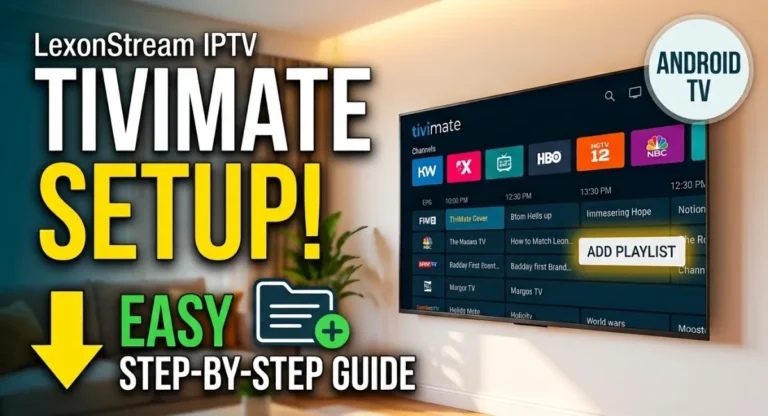
- Select Add Playlist From the TiviMate home screen, choose the option to add a new playlist.
- Choose Xtream Codes Select the Xtream Codes login method if your provider supplied these credentials.
- Enter the server address Type the server URL exactly as provided. Avoid adding spaces or changing the protocol.
- Enter username and password Carefully enter the credentials supplied with your subscription.
- Wait for the playlist to load TiviMate will connect to the service and retrieve the available channel information.
Option 2: M3U playlist URL
An M3U playlist works differently because you are entering a playlist address rather than a separate username and password form.
- Choose the M3U playlist option Select the playlist method that accepts an M3U URL.
- Enter the complete URL Copy the address supplied by your provider and enter it without modifying the characters.
- Confirm the playlist Let TiviMate process the URL and download the available channel list.
If you are typing a long M3U URL with the TV remote, double-check every character. A single missing symbol can prevent the playlist from loading.
Organizing channels after the playlist loads
A large IPTV playlist can contain thousands of entries. Leaving everything in one long list makes navigation unnecessarily slow, so the first useful step after installation is organizing the interface around the channels you actually watch.
Create a useful favorites list
Add frequently watched channels to your favorites rather than scrolling through the complete provider playlist every time you open the app.
Hide channels and groups you never use
If your provider includes multiple categories or duplicate channels, hiding irrelevant groups can make the interface considerably easier to navigate.
Give the guide time to populate
EPG information may not appear immediately after the playlist is added. Depending on the provider and guide source, TiviMate may need some time to download and process the program information.
Getting the TV guide working correctly
A playlist and an electronic program guide are not necessarily the same thing. Your provider may supply the guide information separately or include the relevant EPG address with the service.
If channels appear but the guide is empty, first check the playlist or account information supplied by your provider. If an EPG source is provided, add it through the playlist or EPG settings in TiviMate and allow the application to refresh the data.
Useful TiviMate settings for Android TV
You do not need to change every available setting. A few adjustments are enough for most users.
| Setting area | What to check | Why it matters |
|---|---|---|
| Playback | Keep the default decoder configuration unless you have a specific playback problem. | Avoids unnecessary changes that can introduce compatibility issues. |
| EPG | Make sure the guide source is correctly associated with the playlist. | Prevents empty or incomplete program information. |
| Favorites | Keep frequently used channels in a dedicated list. | Makes everyday navigation faster. |
| Groups | Hide categories that are irrelevant to you. | Reduces clutter in large playlists. |
If a playlist does not load
When TiviMate shows no channels after you enter your information, the problem is usually easier to isolate than it first appears.
Check the credentials first
Re-enter the username, password, server address, or M3U URL. Pay particular attention to uppercase and lowercase characters, punctuation, and accidental spaces.
Test the connection outside TiviMate
If your provider gives you access to another compatible player, testing the same credentials there can help determine whether the problem is with the playlist itself or with the TiviMate configuration.
Check whether the subscription is active
Expired credentials, an inactive account, or a provider-side outage can prevent a valid-looking playlist from returning channels.
Restart the application
Close TiviMate, reopen it, and allow the playlist to refresh. For persistent connection issues, restarting the Android TV device and network router can also help isolate a temporary connection problem.
TiviMate performance tips that actually matter
Most playback problems are not fixed by changing random settings. Start with the network and device before adjusting advanced playback options.
- Use Ethernet when a wired connection is practical.
- If using Wi-Fi, place the router and TV where the signal is reasonably strong.
- Close unnecessary applications running in the background.
- Keep enough free storage available on the Android TV device.
- Restart the TV occasionally if it has been running for long periods.
- Test several channels before assuming that every playback problem has the same cause.
If only one channel buffers while others play normally, the issue may be related to that particular stream rather than the TiviMate application or your home network.
TiviMate on Android TV vs. the IPTV service itself
It is useful to separate the player from the service. TiviMate is the application used to organize and play compatible IPTV playlists; it does not create the channels or repair a provider’s server.
This distinction makes troubleshooting much easier. If the playlist cannot connect at all, investigate the credentials, subscription, server, or network. If the playlist loads but the interface behaves incorrectly, then the TiviMate configuration becomes the more relevant place to look.
Using your IPTV subscription with TiviMate
Once TiviMate is installed and configured, you can use it as the interface for a compatible IPTV subscription. For example, if you use Lexonstream IPTV, use the connection details supplied with your subscription and enter them into the appropriate playlist method in TiviMate.
Keep your login information private and use only playlist or account details that you are authorized to access.
Common questions
Is TiviMate available for Android TV?
Yes. TiviMate is designed for television interfaces and can be installed on compatible Android TV devices through the Google Play Store when it is available for that device.
Does TiviMate provide IPTV channels by itself?
No. TiviMate is an IPTV player. You need a compatible playlist or subscription from an IPTV service to provide the channel content.
Can I add an M3U playlist to TiviMate?
Yes. TiviMate supports playlist-based setup, including M3U URLs when supplied by a compatible IPTV service.
Why are my channels visible but the EPG is empty?
The channel playlist and electronic program guide can use separate data sources. Check whether your IPTV service provides EPG information and whether it has been correctly associated with the playlist.
Why does TiviMate keep buffering?
Buffering can come from the home network, Wi-Fi conditions, the Android TV device, or the IPTV stream itself. Test several channels and, when possible, compare Wi-Fi with Ethernet to narrow down the cause.
Ready to use TiviMate with your IPTV service?
Once TiviMate is installed, the remaining step is simply connecting a compatible IPTV subscription and organizing the channels to your preference. If you use Lexonstream IPTV, you can get your service details and continue the setup from there.
Visit Lexonstream IPTVFinal setup checklist
Before considering the setup finished, make sure the application is installed, your playlist connects successfully, channels are visible, and the EPG is populated if your service provides guide data. After that, favorites and hidden groups can make the interface much easier to use.
The main advantage of using TiviMate on Android TV is the organization it brings to a large IPTV playlist. Once the initial connection is configured correctly, everyday channel browsing becomes much simpler than repeatedly entering playlist information or switching between different applications.