How to Install IPTV on Firestick (The Complete 2026 Guide)
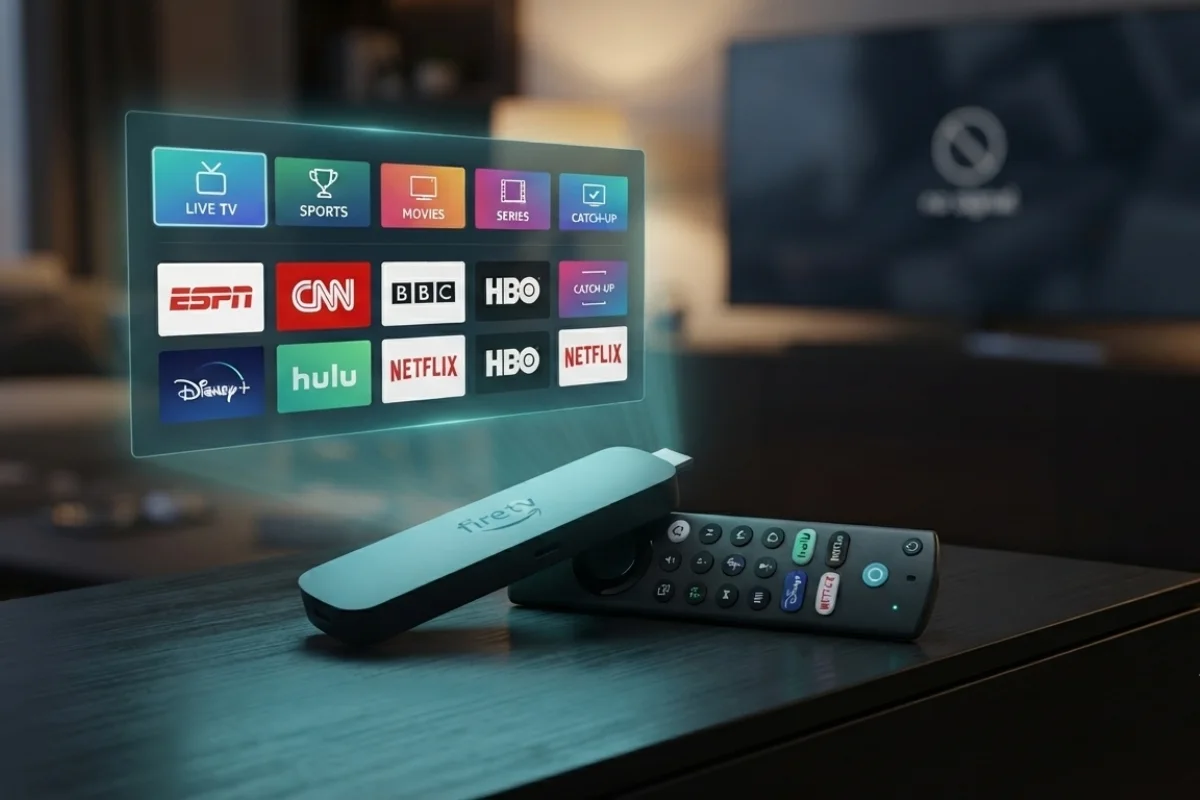 Firestick IPTV Guide · 2026
How to Install IPTV on Firestick (The Complete 2026 Guide)
Want to watch IPTV on your TV without relying on traditional cable or satellite? An Amazon Firestick makes it easy to install a compatible IPTV player, connect your subscription, and access your channels from one device.
To install IPTV on Firestick, you need a compatible IPTV player and a valid IPTV subscription. Install the player on your Fire TV device, open it, choose the login method supported by your provider, and enter your account details or M3U playlist.
Setting up IPTV on Firestick is usually straightforward. The confusing part is knowing which application to use, where the relevant Fire TV settings are located, and how to correctly connect your IPTV subscription.
In this guide, you’ll learn how to install IPTV on Firestick from start to finish, how M3U and Xtream Codes logins work, how to improve playback performance, and what to check if your IPTV service isn’t loading correctly.
What You Need Before Installing IPTV on Firestick
Before starting your Firestick IPTV setup, make sure you have the following:
A compatible Fire TV Stick or Fire TV device connected to your television.
A stable Wi-Fi or wired connection suitable for streaming video.
An application capable of loading your IPTV subscription or playlist.
Your provider’s login details, M3U URL, or supported connection information.
An Amazon Firestick or Fire TV device
You can use an Amazon Fire TV Stick or another compatible Fire TV device. Fire TV uses Fire OS and supports compatible Android applications, allowing supported IPTV players to run on the platform.
A stable internet connection
IPTV streams video continuously, so your Firestick needs a reliable connection. A connection can have high download speeds and still experience buffering if the Wi-Fi signal is unstable or the network is congested.
An IPTV subscription and login details
An IPTV player and an IPTV service are two different things. The player provides the interface used to access the streams, while the IPTV service supplies the content and connection details.
Depending on your provider, you may receive an M3U playlist URL or Xtream Codes-style credentials.
How IPTV Works on a Firestick
Before installing anything, it helps to understand the two main components involved in a typical IPTV setup.
IPTV service vs IPTV player
Your IPTV service provides the streaming sources. The IPTV player is the application that reads those sources and displays your channels, categories, TV guide, movies, or series.
M3U and Xtream Codes explained
Two common ways of loading an IPTV subscription are an M3U playlist and Xtream Codes-style credentials.
| Method | What you enter | Best for |
|---|---|---|
| M3U Playlist | Playlist URL | Users who have an M3U link |
| Xtream Codes | Username, password and server URL | Simple account-based setup |
How to Install IPTV on Firestick
The basic installation process is simple: prepare your Firestick, install a compatible IPTV player, and then connect your IPTV subscription.
Open your Firestick settings
From the Fire TV home screen, open Settings.
Depending on your Fire OS version, the exact location and wording of some settings may differ slightly.
Enable the required installation permissions
If your IPTV player is available through the Amazon Appstore, you can install it normally.
Applications distributed outside the Appstore may require Fire TV’s appropriate installation permissions before they can be installed.
Install a compatible IPTV player
Choose an IPTV player that supports the login method supplied by your provider.
Some players focus on simplicity, while others provide features such as EPG support, favorites, multiple playlists, and advanced playback controls.
Open the IPTV player
After installation, launch the IPTV application.
Depending on the player, the first screen may ask you to accept terms, allow permissions, select a login method, or add a playlist.
Add your IPTV subscription
Select the login method supplied by your IPTV provider.
If you received Xtream Codes-style credentials, you will normally enter the following:
If your provider supplied an M3U playlist, select the M3U or playlist option and enter the complete URL.
Wait for your channels and categories to load
After submitting your information, the IPTV player should connect to the service and load the available content.
Depending on the service, you may see categories such as Live TV, Sports, Movies, Series, Favorites, and an electronic programme guide.
Once the content has loaded, open a channel and test playback.
How to Set Up Your IPTV Service on Firestick
Using Xtream Codes API
If your IPTV provider supplies Xtream Codes-style credentials, you normally enter three pieces of information:
- Your username
- Your password
- Your provider’s server URL
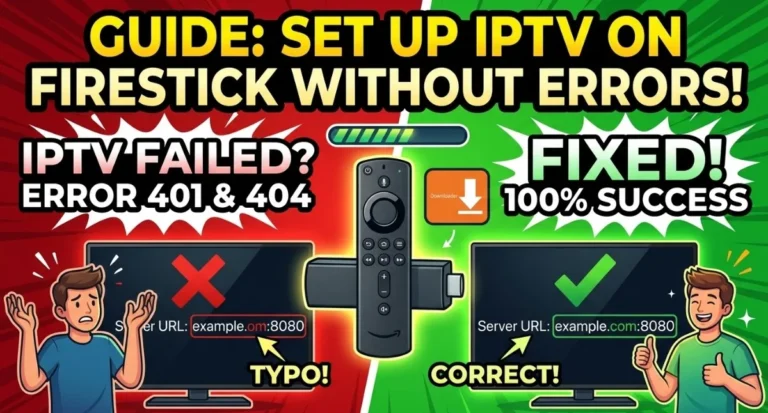
Enter the information exactly as supplied. Extra spaces, missing characters, or an incorrect server address can prevent the playlist from loading.
Using an M3U playlist
An M3U setup uses a playlist URL supplied by your IPTV provider. Depending on the player, you may also be asked to provide an EPG URL.
Which IPTV login method should you use?
If your provider offers multiple options, use the method that is supported by your chosen IPTV player.
Xtream Codes-style login can be convenient because the username, password, and server address are entered separately. M3U is useful when your provider specifically gives you a playlist URL.
How to Get Better IPTV Performance on Firestick
Installing IPTV is only part of the setup. A few simple adjustments can help maintain a more consistent streaming experience.
Check your internet connection
Test the connection used by your Firestick if channels are constantly buffering or taking a long time to load.
Don’t look at download speed alone. Wi-Fi interference, congestion, latency, and connection stability can also affect live streaming.
Keep enough storage available
Fire TV devices have limited internal storage. Remove applications you no longer use if the device is becoming full.
Restart your Firestick regularly
A restart can clear temporary application and system issues. If IPTV suddenly becomes slow, restart the Firestick before changing your entire setup.
Use a wired connection when possible
If your setup supports Ethernet, a wired connection can provide a more consistent connection than congested Wi-Fi.
IPTV Not Working on Firestick? Common Fixes
IPTV app won’t install
Check the following:
- Available Firestick storage
- Your internet connection
- Application compatibility
- The installation source
- Whether the application was installed correctly
IPTV channels keep buffering
Start by identifying whether the problem affects one channel or multiple channels.
- One channel: the individual stream may have an issue.
- Several channels: investigate the service, application, or network.
- Everything on Firestick: check your internet connection and device performance.
IPTV playlist won’t load
Double-check your IPTV credentials.
- Username
- Password
- Server URL
- M3U playlist URL
If the same subscription works in another compatible player, the issue may be specific to the application you’re currently using.
Black screen or playback errors
Try these troubleshooting steps in order:
- Close and reopen the IPTV player.
- Restart the Firestick.
- Test another channel.
- Check your internet connection.
- Clear the application’s cache.
- Check for an available application update.
- Test the subscription using another compatible IPTV player.
Audio and video are out of sync
Try another channel first. If only one stream has the problem, the individual stream may be responsible.
If the problem affects every channel, restart the Firestick and review the playback settings available in your IPTV player.
Can You Install IPTV on Any Firestick?
Compatibility depends on the IPTV player and Fire OS version rather than simply the Firestick model.
| Fire TV device | IPTV setup |
|---|---|
| Fire TV Stick Lite | Compatible with supported IPTV applications |
| Fire TV Stick | Suitable for standard IPTV streaming |
| Fire TV Stick 4K | Useful for compatible 4K streaming |
| Fire TV Stick 4K Max | Designed for higher-performance streaming |
Is IPTV Legal on Firestick?
IPTV is a technology used to deliver television and video content over an internet connection. The legality of a particular service depends on the content it distributes and whether the provider has the necessary rights to distribute that content.
Frequently Asked Questions
Can I install IPTV on a Firestick?
Yes. You can use compatible IPTV player applications on Fire TV devices and connect them to an IPTV service using a supported method such as an M3U playlist or Xtream Codes-style credentials.
What is the best IPTV player for Firestick?
There isn’t one IPTV player that is best for every user. Your choice depends on the features you need, your provider’s supported login methods, and whether you prefer a simple interface or advanced playback features.
Do I need a VPN for IPTV on Firestick?
A VPN is not inherently required to install or use an IPTV player. Whether you choose to use one depends on your privacy preferences, network configuration, and local laws.
Why does IPTV buffer on my Firestick?
Buffering can be caused by unstable Wi-Fi, network congestion, insufficient bandwidth, stream-side issues, application problems, or device performance.
Can I use IPTV without cable or satellite TV?
Yes. IPTV delivers video over an internet connection rather than through a traditional cable or satellite television connection. You still need an internet connection and a legitimate service providing the content you want to watch.
Final Thoughts
Setting up IPTV on a Firestick is generally a short process once you understand how the different components work together.
You need a compatible Fire TV device, an IPTV player, and valid subscription information. Install the player, choose the appropriate login method, enter your details, and allow the playlist to load.
If something doesn’t work, troubleshoot one part at a time. Check your network, credentials, IPTV application, and individual streams before assuming that the entire setup needs to be replaced.
Ready to Set Up IPTV on Your Firestick?
If you’re using Lexonstream IPTV, have your subscription details ready and follow the setup steps above to get your Firestick connected.
Visit Lexonstream IPTVNote: IPTV players are generally separate from the IPTV services that provide streaming content. Always use services and content you are authorized to access.