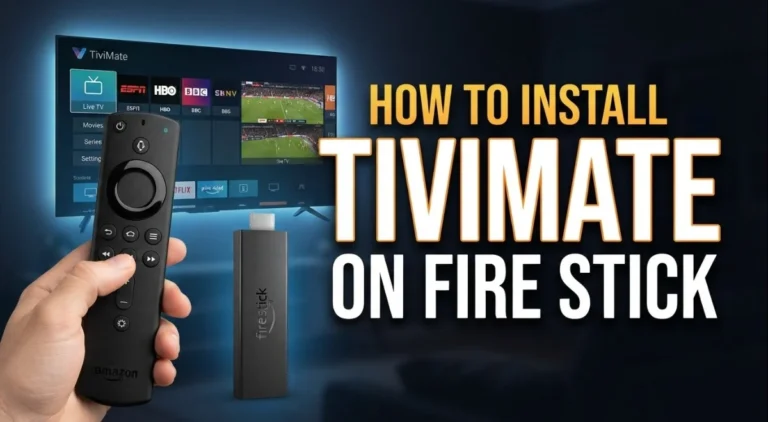
How to Install and Configure TiviMate on Fire Stick
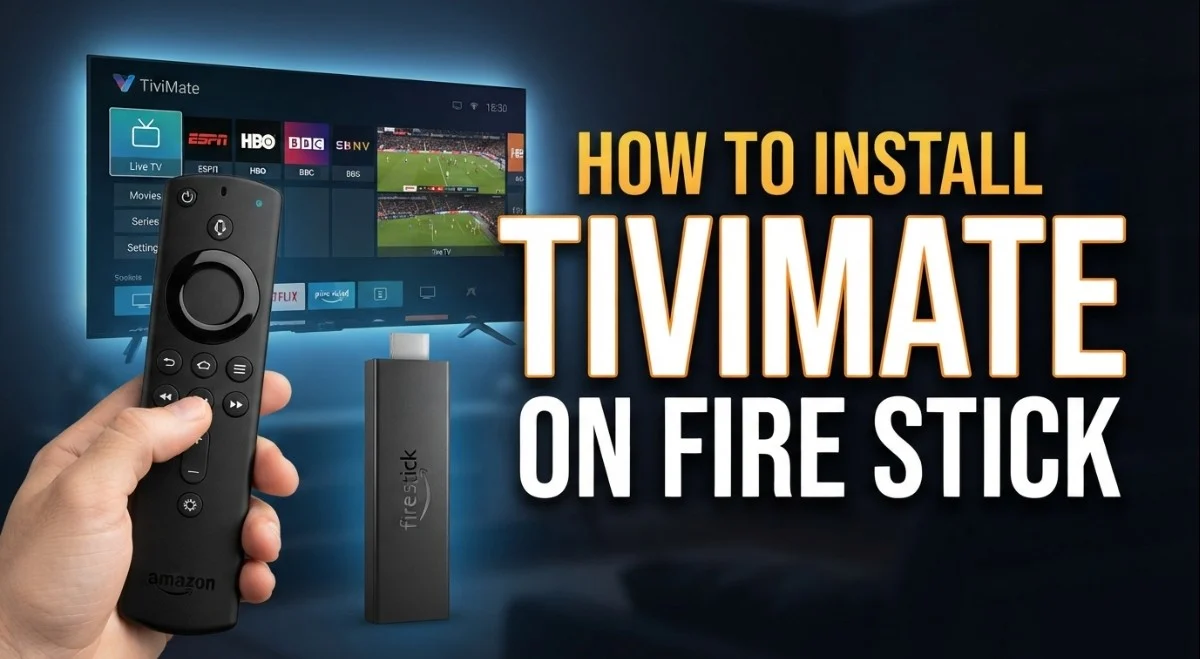 Firestick IPTV · TiviMate · Setup Guide
How to Install and Configure TiviMate on Fire Stick
TiviMate is designed around the way people actually watch IPTV: live channels, channel groups, favorites, electronic programme guides, and multiple playlists in one interface. On a Firestick, getting the player ready is only half the job. The important part is adding your IPTV service correctly and configuring the player so the interface works the way you want it to.
To use TiviMate on Firestick, install the compatible TiviMate application, launch it, add your IPTV playlist using the connection method supported by your provider, and allow the playlist to finish loading. You can then configure the EPG, favorites, channel groups, playback options, and other interface settings.
One distinction is worth making before you begin: TiviMate is an IPTV player, not an IPTV service. Installing the app does not create a channel subscription. You need a legitimate IPTV service and the playlist or account information required to connect it.
This guide covers the complete process, from getting TiviMate onto your Firestick to adding a playlist and tuning the most useful settings. It also explains what to check when channels, EPG data, or playback aren’t behaving as expected.
What Is TiviMate?
TiviMate is an IPTV player built primarily around a television-style viewing experience. Instead of opening individual streams manually, it organizes the information supplied by an IPTV service into categories, channels, programme listings, and favorites.
That makes it particularly useful for people with larger IPTV playlists. Once your service is connected, you can navigate through channel groups rather than repeatedly entering URLs or credentials.
What TiviMate can organize
Browse live TV channels supplied by your IPTV service.
Separate large playlists into categories for faster navigation.
Keep frequently watched channels in a more accessible list.
Display programme information when compatible EPG data is supplied and configured.
What You Need Before Setting Up TiviMate
Have these items ready before starting. It will make the actual configuration much quicker.
- An Amazon Firestick or compatible Fire TV device
- A stable internet connection
- A compatible TiviMate installation
- A legitimate IPTV subscription or playlist
- The M3U URL or other connection information supplied by your provider
- EPG information if your provider supplies a separate EPG URL
How to Install TiviMate on Firestick
The installation route can vary depending on the Fire TV software version and how the application is currently distributed. If TiviMate is available through the official application store on your device, use that route first.
Open the Firestick app search
From the Fire TV home screen, open the search function and look for TiviMate.
Check the application name carefully before installing anything. Avoid similarly named applications from unknown publishers.
Install the compatible TiviMate application
Select the appropriate TiviMate application and install it on your Firestick if it is available through your device’s supported app distribution method.
Once installation finishes, open the application.
If TiviMate is not available through your app store
Depending on the current Fire TV software and application availability, some users may need to use a legitimate alternative installation method supported by their device.
If you choose to sideload an application, only use a trusted, legitimate source for the application package. Never install an APK simply because an unfamiliar website claims that it is the “latest” version.
First-Time TiviMate Setup on Firestick
After launching TiviMate for the first time, you’ll need to connect it to your IPTV service. The exact wording of the menus can differ between versions, but the basic process is straightforward.
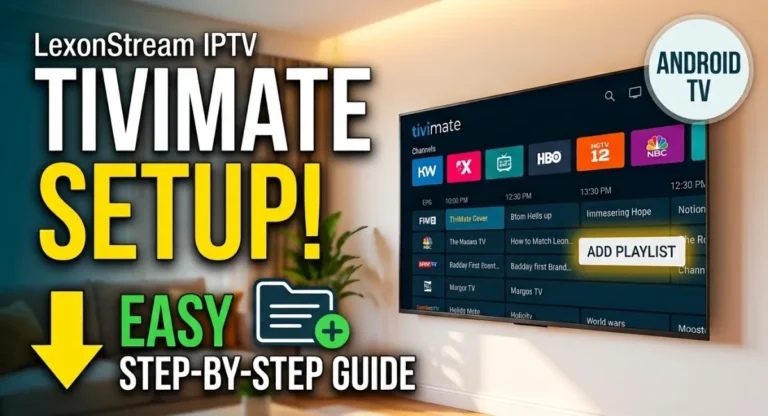
Open the Add Playlist option
Start from the main TiviMate interface and select the option to add a playlist.
This is where you’ll connect the player to the IPTV information supplied by your provider.
Choose your playlist method
Select the connection method that matches the information your IPTV provider gave you.
For many services, this means using an M3U playlist URL or an account-based connection method supported by the application.
Enter the information supplied by your IPTV provider
Enter your information carefully. If you’re using a playlist URL, make sure the entire address is present.
Do not replace your provider’s server address with one found randomly online. The correct connection details come from the IPTV service you subscribed to.
Wait for the playlist to finish loading
Large playlists can take a little longer to process. Let TiviMate finish loading before repeatedly pressing back or restarting the application.
Once successful, you should be able to browse the channel groups provided by your IPTV service.
How to Add an M3U Playlist to TiviMate
An M3U playlist is essentially a structured list of media streams. Your IPTV provider may give you a URL that TiviMate can use to retrieve that playlist.
Enter the M3U URL carefully
Long playlist URLs are easy to mistype. If possible, use a reliable method to transfer the URL rather than manually typing every character with the Firestick remote.
What happens after the playlist loads?
TiviMate reads the information in the playlist and organizes the available channels into groups. The exact categories depend entirely on what your IPTV provider supplies.
How to Set Up the EPG in TiviMate
The EPG, or Electronic Programme Guide, displays information about what is currently playing and what is scheduled next. It can make a large IPTV playlist much easier to navigate.
Not every IPTV service supplies EPG data in the same way. Some include it with the playlist, while others provide a separate EPG source.
If your provider supplies a separate EPG URL
- Open the relevant EPG settings in TiviMate.
- Add the EPG source supplied by your IPTV provider.
- Save the source.
- Allow TiviMate to update the programme information.
- Return to the guide and check several channels.
If the guide remains empty while live TV works, the issue may be with the EPG source or channel mapping rather than your IPTV playlist.
Configure TiviMate for Easier IPTV Navigation
TiviMate becomes much more useful once you stop treating the default channel list as your final setup. A few organizational changes can make a large playlist considerably easier to use.
Create a useful favorites list
Add channels you actually watch regularly to your favorites. This saves you from scrolling through hundreds or thousands of entries every time you want to watch a particular channel.
Organize channel groups
If your provider supplies categories such as sports, news, movies, entertainment, or regional channels, use the available group and visibility settings to keep the interface manageable.
Hide groups you never use
A playlist can contain far more content than you need. Hiding unused categories can make navigation much faster without changing the underlying subscription.
Give your playlist a recognizable name
If you use more than one IPTV playlist, give each one a clear name. This prevents confusion when switching between services or testing a different connection.
Can You Add Multiple IPTV Playlists to TiviMate?
TiviMate can be useful for users who need to manage more than one IPTV playlist, depending on the application’s available features and plan.
This can be helpful for separating different services, testing a second connection, or keeping different channel collections organized. It is usually better to give each playlist a clear name rather than leaving several sources with generic labels.
| Setup | Best for | Organization tip |
|---|---|---|
| One playlist | Simple everyday viewing | Use favorites and hide unused groups |
| Two playlists | Separating services or testing connections | Give each playlist a clear name |
| Multiple playlists | Advanced organization | Keep only useful groups visible |
Best TiviMate Settings for Firestick Performance
There isn’t one magic TiviMate configuration that fixes every buffering problem. Playback depends on the Firestick, your network, the IPTV service, and the individual stream.
Don’t change advanced settings unnecessarily
If channels play normally, leave advanced playback options alone. Changing several decoder or buffer settings at once makes it much harder to identify what actually caused a problem.
Test different channels before changing settings
This is one of the most useful troubleshooting habits. If one channel buffers but several others play smoothly, the problem may be specific to that stream rather than TiviMate or your Firestick.
Keep your Firestick storage reasonable
Remove applications and files you no longer need. A streaming device with very little free storage can become harder to manage and may experience broader performance problems.
Check your Wi-Fi environment
If possible, keep the Firestick within a good range of your router. Network congestion, interference, and a weak wireless signal can all affect streaming stability.
TiviMate Not Working on Firestick? Try These Fixes
The fastest way to troubleshoot IPTV is to isolate the problem instead of changing everything at once.
TiviMate won’t install
First check whether the application is compatible with your Fire TV device and current software. If you are using a sideloaded installation, verify the application source and package before trying again.
Also check available storage. If the device is nearly full, uninstall unused applications and retry the installation.
TiviMate opens but the playlist won’t load
This usually points toward the playlist information or connection rather than the visual interface itself.
- Check the playlist URL.
- Verify that your subscription is still active.
- Check your username and password if applicable.
- Make sure there are no accidental spaces in the URL.
- Test the connection on another compatible device if possible.
Channels load but the EPG is empty
Live TV and EPG data are not necessarily the same thing. If your channels work but the programme guide does not, review the EPG source and refresh the guide.
If your IPTV provider does not supply usable EPG information, changing random TiviMate settings won’t create missing programme data.
TiviMate keeps buffering
Start by determining whether the issue affects one stream or everything.
- Try another channel.
- Try another channel group.
- Restart the Firestick.
- Check the Wi-Fi connection.
- Close applications you aren’t using.
- Test the same IPTV service on another device.
If only certain channels buffer, the issue may be on the source side. If every stream struggles across multiple devices, investigate the network or IPTV service before repeatedly reinstalling TiviMate.
TiviMate is slow to navigate
Very large playlists can take more effort to navigate than a small channel list. Hiding unused groups, reducing unnecessary content, and keeping the Firestick’s storage under control can make the interface easier to use.
TiviMate Settings Worth Checking
Once the basic setup works, you can refine the experience without touching every advanced option.
Keep programme information refreshed when your IPTV service provides compatible EPG data.
Keep the channels you actually watch close at hand.
Hide categories that add clutter to your channel list.
Refresh your playlist when your provider makes channel or category changes.
Using TiviMate With Lexonstream IPTV
If you’re using Lexonstream IPTV, have your subscription details ready before opening TiviMate. The exact information you receive depends on the connection method provided with your account.
Add the supplied playlist or account information to TiviMate, then wait for the channel groups to finish loading. Once everything appears, test several channels rather than judging the setup from a single stream.
After that, you can organize your favorites, hide unused groups, and configure the EPG if compatible programme data is available.
Why Use TiviMate for IPTV on Firestick?
The main advantage is organization. A basic IPTV player can be enough for someone with a small playlist, but TiviMate is particularly useful when you want a more traditional TV interface.
- Channel groups make large playlists easier to navigate.
- Favorites reduce repeated scrolling.
- EPG support can make live TV easier to browse.
- Multiple playlists can be useful for more advanced setups.
- The interface is designed around remote-control navigation.
If you only have a handful of streams, you may not need all of these features. The difference becomes more noticeable as your IPTV library grows.
Is TiviMate Legal to Use?
TiviMate is an IPTV player. The legality of the content you watch depends on the IPTV service and whether that service is authorized to distribute the content in question.
Use IPTV subscriptions and streams that you are legally entitled to access, and follow the applicable laws in your location.
Frequently Asked Questions
How do I install TiviMate on Firestick?
Install a compatible TiviMate application using the supported installation method available for your Fire TV device. Then launch TiviMate and add your IPTV playlist using the connection details supplied by your IPTV provider.
Does TiviMate provide IPTV channels?
No. TiviMate is an IPTV player. You need a separate IPTV service or playlist containing content you are authorized to access.
Can I add an M3U playlist to TiviMate?
Yes, TiviMate supports playlist-based IPTV setups. If your provider supplies an M3U URL, use the appropriate playlist option and enter the complete URL.
Why isn’t my TiviMate EPG working?
Check whether your IPTV provider supplies EPG data and whether the correct EPG source has been added. If live channels work but programme information is missing, the issue may be with the EPG source or channel mapping.
Why does TiviMate buffer on Firestick?
Buffering can come from Wi-Fi problems, network congestion, device performance, the IPTV service, or an individual stream. Test several channels first to determine whether the issue affects everything or only particular streams.
Can I use more than one IPTV playlist in TiviMate?
TiviMate can support multiple IPTV playlists depending on the features available in the version and plan you are using. Multiple playlists can be useful for separating services or keeping different channel collections organized.
How can I make TiviMate easier to use?
Start by adding frequently watched channels to favorites, hiding unused channel groups, and keeping your EPG information current when your provider supports it.
Final Thoughts
Setting up TiviMate on Firestick is really a two-part process: installing the player and connecting it to your IPTV service. Once your playlist is working, the real benefit comes from organizing the interface around how you watch TV.
Start with the basics, verify that several channels play correctly, then configure favorites, groups, and EPG information. If something stops working later, isolate the problem before changing advanced playback settings.
Ready to Set Up IPTV on Your Firestick?
Have your IPTV subscription details ready, install TiviMate, and use the setup steps above to organize your channels and playlists. If you’re using Lexonstream IPTV, your supplied subscription information can be added to the compatible IPTV player setup.
Visit Lexonstream IPTVNote: TiviMate is an IPTV player and does not itself provide television channels or IPTV subscriptions. Use only IPTV services and streams that you are authorized to access.